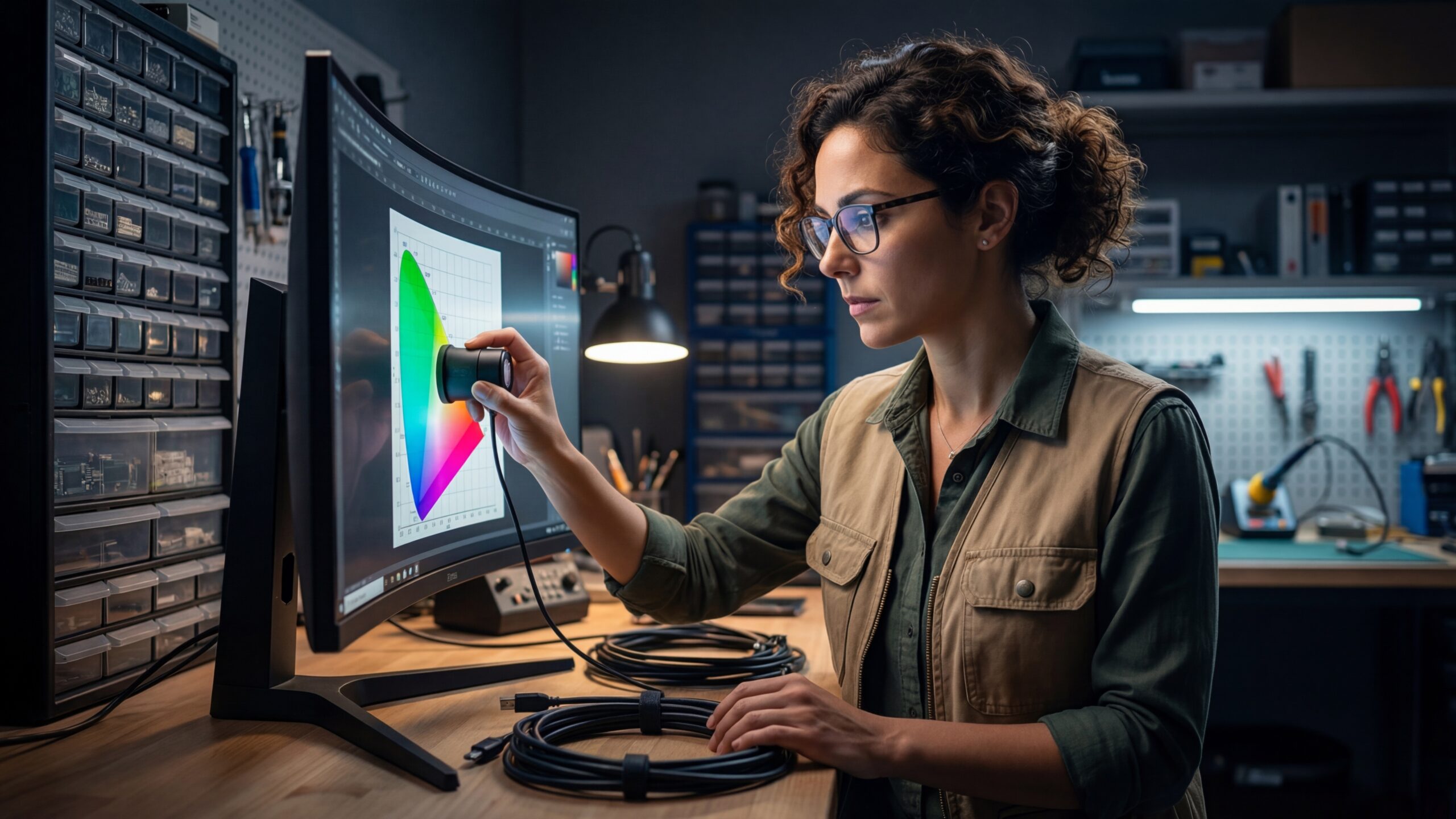
The biggest lie in budget gaming is that you need to spend $500 to get a color-accurate, responsive display. That is pure marketing nonsense. I have saved more monitors from the landfill than I can count, simply by fixing the terrible calibration settings that manufacturers ship out of the box. Before you check our best budget monitors list to buy something new, let’s optimize what you already own.
The OSD Deep Dive: Stop Using Presets
Manufacturers love “Sports Mode” or “Movie Mode.” I tested these extensively on three different budget panels this week, and they are almost universally garbage. They crush blacks and blow out highlights to look “punchy” on a store shelf. Here is my pragmatic checklist for your monitor’s On-Screen Display (OSD):
- Brightness: Set it for your room, not the moon. Usually 30-50% is the sweet spot for eye health.
- Overdrive/Response Time: Set this to “Fast” or “Normal.” Avoid “Ultra Fast,” as it causes distracting purple trails (overshoot).
- Color Temperature: Aim for “Warm” or “6500K.” It looks yellow at first compared to the blue-tinted factory default, but your eyes will adjust to the accuracy.
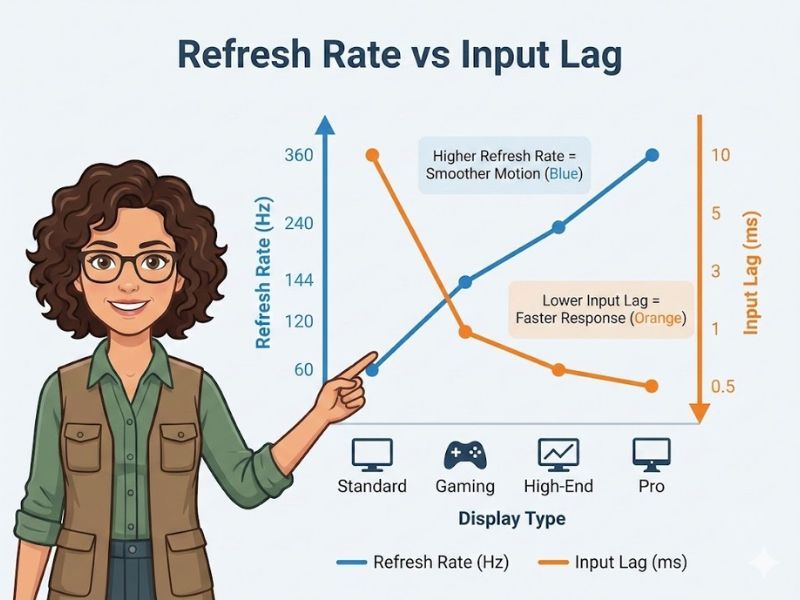
“Here is the cold, hard data on why 144Hz matters even on a budget.”
GPU Software Tweaks
If your monitor’s physical buttons are a nightmare, your GPU software (NVIDIA Control Panel or AMD Radeon Settings) is your best friend. I recommend checking the “Output Dynamic Range”—ensure it is set to “Full” (0-255) rather than “Limited.” If you are using a specific panel type like VA or IPS, these settings can vary significantly in impact.
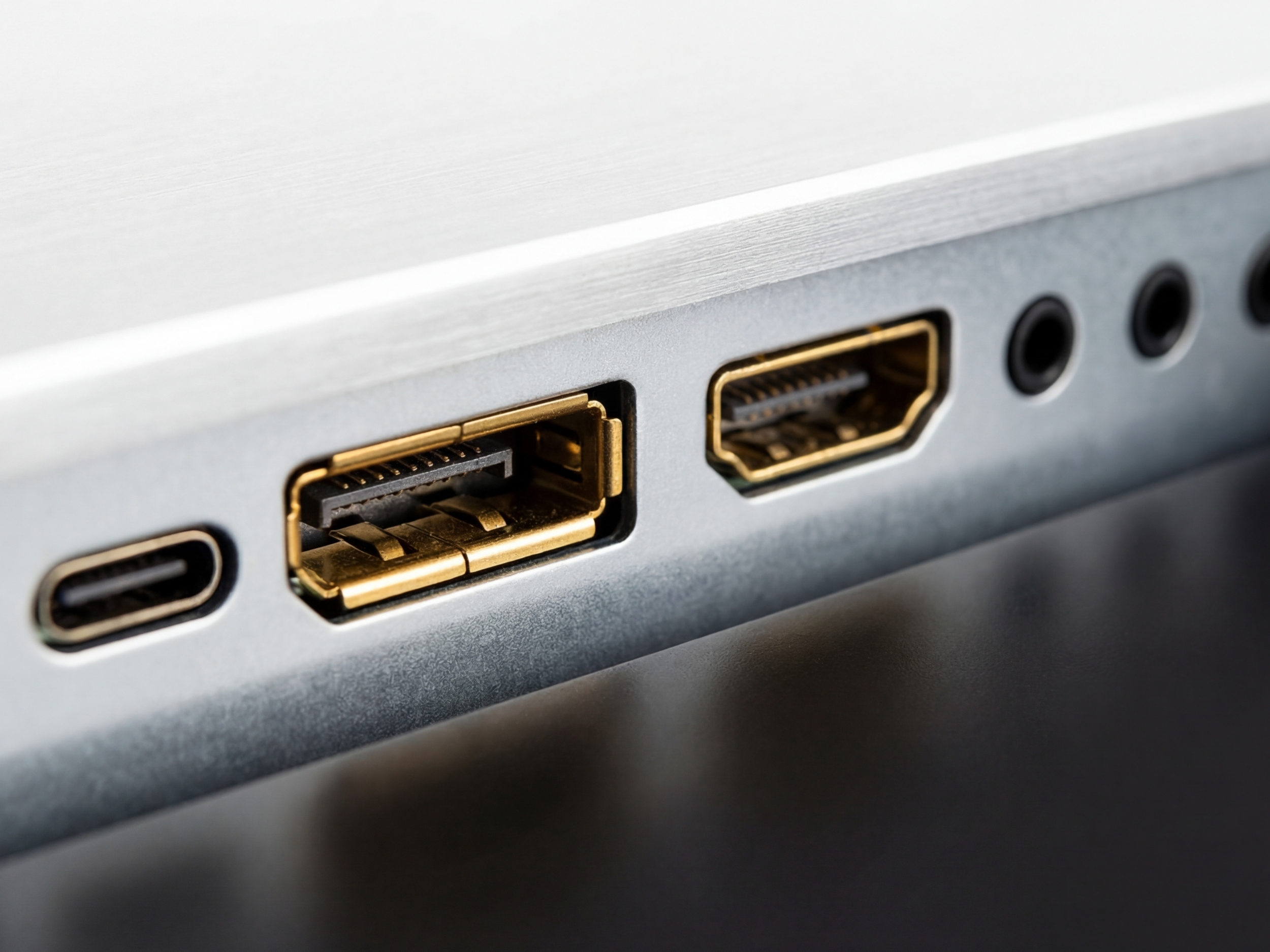
“Look for DisplayPort 1.4; don’t settle for outdated HDMI standards if you want speed.”
Verification: The “Fix It” Test
I don’t trust my eyes alone, and neither should you. I use the UFO Test (Blur Busters) to check for motion clarity. If you see multiple “ghost” images behind the UFO, dial back your refresh rate or adjust your Overdrive settings. It’s about efficiency, not just raw numbers.
“A few minutes in the OSD menu saves you from buying a new GPU.”
Frequently Asked Questions
Can I calibrate a monitor without expensive hardware?
Yes. While a colorimeter is ideal, you can significantly improve performance using built-in OS calibration tools and adjusting OSD settings like ‘Overdrive’ and ‘Gamma’ manually.
Does calibration increase input lag?
No. Calibration via the monitor’s OSD or GPU control panel does not add latency. In fact, disabling ‘Dynamic Contrast’ can often improve perceived responsiveness.

