Run the ghosting test Watch a moving shape while you change overdrive, one step at a time.
Ghosting vs. Motion Blur
Moving objects leaving a faint trail behind them? That’s usually ghosting, and on most monitors it’s a setting to tune rather than a fault. “Ghosting” happens when the pixels on your screen can’t change color fast enough to keep up with the moving image. It’s especially common on budget VA panels. Unlike a stuck pixel, which is a static failure, ghosting is a dynamic performance issue.
The Overdrive Fix
Manufacturers know their panels are slow, so they include a feature called “Overdrive” (sometimes labeled as Trace Free, Response Time, or AMA). This sends a higher voltage to the pixels to force them to change colors faster.
How to find the right setting:
- Go to the Blur Busters UFO Test website.
- Open your monitor’s OSD menu.
- Find the Overdrive setting.
- Watch the UFOs while increasing the setting one step at a time.
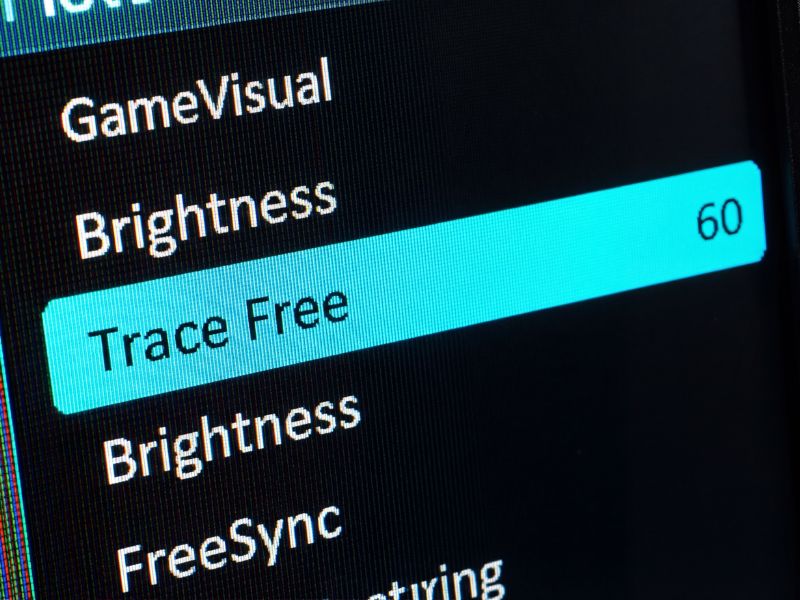
Overdrive goes by different names in monitor menus: Response Time, Overdrive, Trace Free or AMA.
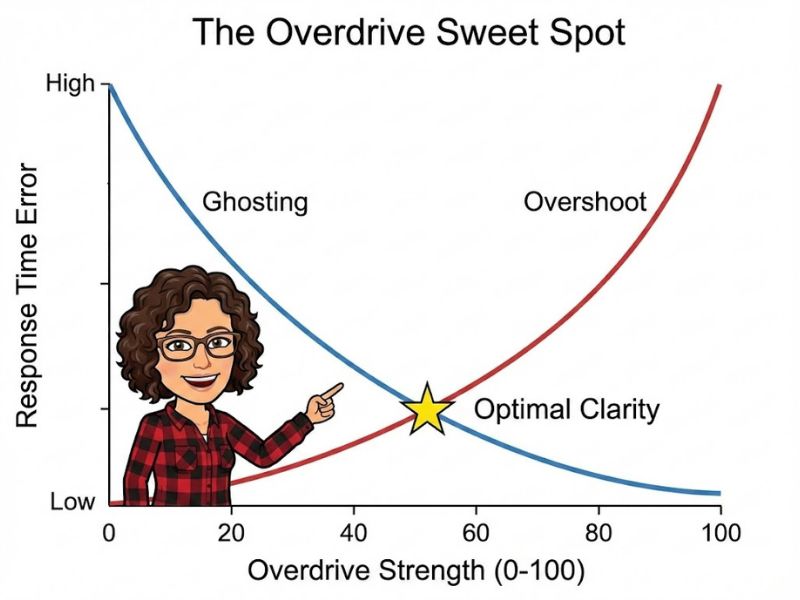
You want to find the ‘Goldilocks’ zone: too little overdrive gives you trails, too much gives you coronas.
Cable & Refresh Rate Check
Sometimes the bottleneck is the pipe, not the panel. If you are using an old HDMI cable on a 144Hz monitor, you might be locked to 60Hz, which makes ghosting look significantly worse. Always use the DisplayPort cable included in the box, or a VESA-certified replacement. Also check your secondary monitor settings to ensure Windows isn’t defaulting your main gaming display to a lower refresh rate.
Common Questions
Why does my VA panel ghost so much?
VA (Vertical Alignment) panels often struggle with slow black-to-grey pixel transitions. This physical limitation causes ‘smearing’ in dark scenes, which can be mitigated but not fully eliminated via Overdrive.
What is inverse ghosting?
Inverse ghosting, or ‘overshoot,’ happens when you set your Overdrive too high. The pixels transition so fast they overshoot the target color, leaving a bright halo or corona around moving objects.