
The ‘Free Cable’ Trap
Manufacturers of budget monitors save money by bundling the cheapest possible cables in the box. These often lack proper EMI shielding. When your GPU pumps high-refresh-rate data through a thin copper wire, signal “leakage” causes those annoying black flashes. I always recommend upgrading to a VESA-certified cable immediately. It’s the single most effective $15 fix you’ll ever find.

Don’t let a $5 cable bottleneck a $300 investment.
VRR and Refresh Rate Mismatches
Variable Refresh Rate (VRR) tech, like FreeSync or G-Sync, is great—until it isn’t. On cheaper monitors, the “range” where VRR works is often narrow. If your frame rate dips below that range, the monitor might flicker as it tries to compensate. I’ve found that disabling VRR in the monitor’s OSD can often isolate the issue. Also, ensure your Windows settings don’t have you set to 59.94Hz when the panel wants exactly 60Hz.
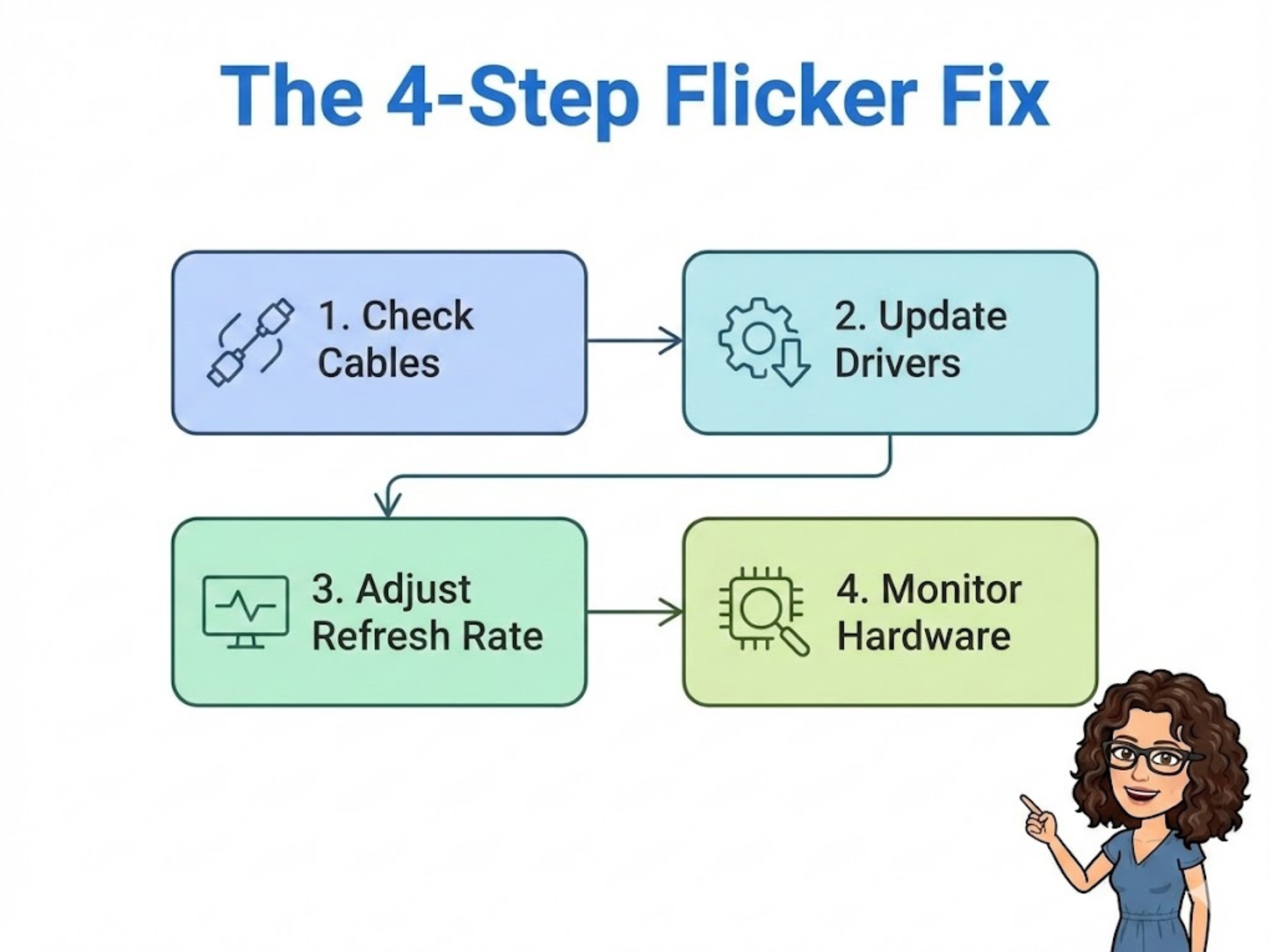
Follow this logic before you reach for your wallet.
Managing Electrical Interference
Budget monitors often have poorly shielded internal power boards. If your monitor is plugged into the same power strip as a mini-fridge or a high-wattage desktop, “dirty power” can manifest as screen noise. I tested this by moving my display to a completely separate wall outlet, and the flickering vanished instantly. Check your environment before you blame the hardware.

A properly calibrated budget panel often beats an unoptimized premium one.
Also, for more specific hardware maintenance, refer to our guide on optimizing budget monitors and the best gaming monitors under $300, if you truly need an upgrade.
Common Questions
Can a cheap cable cause monitor flickering?
Yes. Most budget flickering issues stem from poor EMI shielding in “free” cables bundled with monitors. High-frequency signals are easily disrupted by external noise.
Is flickering always a sign of a dying panel?
Not at all. In my experience, 80% of flickering is caused by refresh rate mismatches, poor cables, or power supply interference. Always troubleshoot the signal path first.

