Are you a Cyberpunk 2077 enthusiast eager to enhance your gaming experience? Are you curious how to resolve the DLSS Ray Reconstruction being greyed out in Cyberpunk 2077? Look no further! This guide delves into the steps to troubleshoot and fix the DLSS Ray Reconstruction greyed-out problem. Join us as we uncover the solutions to get your game back on track. How to fix DLSS Ray reconstruction greyed out in Cyberpunk 2077 will no longer be a mystery!
How Can DLSs Ray Reconstruction Be Fixed in Cyberpunk 2077?
You can resolve the DLSS Ray Reconstruction greyed-out issue by following the steps below.
1. Check Compatibility and Update Drivers
- Confirm Your Graphics Card: Verify if your graphics card supports DLSS Ray Reconstruction. This feature caters specifically to NVIDIA RTX series graphics cards. Check your system specifications to ensure you have a compatible GPU.
- Update Graphics Drivers: Outdated graphics drivers can often lead to compatibility problems. To fix this, visit the official NVIDIA website and download the latest drivers for your specific GPU model. Keeping your drivers up to date is crucial.
2. Adjust DLSS Settings in the Game
- Access the DLSS Settings: Launch Cyberpunk 2077 and head to the main menu. Click on “Settings,” then navigate to the “Graphics” or “Video” section.
- Inspect DLSS Options: Look for DLSS settings, which may include “DLSS Quality,” “DLSS Balanced,” and “DLSS Performance.” Ensure you set DLSS to your preferred setting, such as “Quality.” Sometimes, it might be accidentally set to “Off” or a lower quality setting, causing the Ray Reconstruction to be greyed out.
Configure Ray Tracing Settings
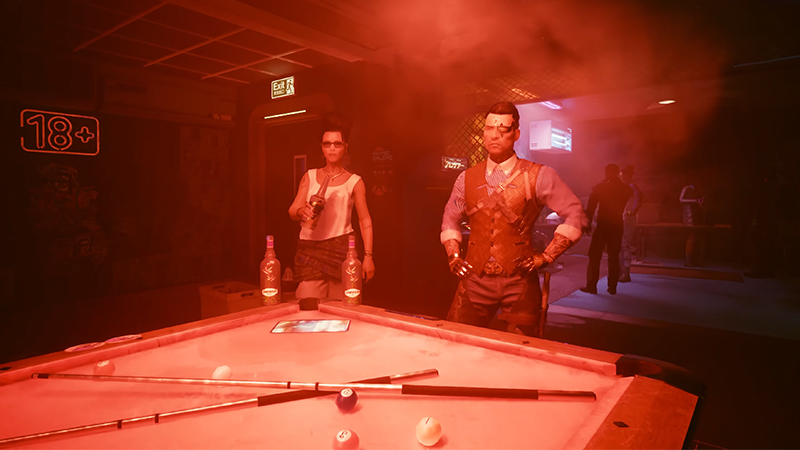
Image source: CD Projekt RED via Gigascreens
Related :
Best Build In Cyberpunk 2077 Patch 2.0
Enable Ray Tracing: DLSS Ray Reconstruction often relies on ray tracing technology. Find the “Ray Tracing” or “Ray Tracing Quality” option within the game settings menu. Set it to your desired level, such as “Ultra,” “High,” or “Medium,” depending on your computer’s capabilities.
Restart the Game: After making these adjustments to the settings, exit the game completely and then relaunch it. Sometimes, changes in settings require a game restart to take effect.
Check for Game Updates: Stay vigilant for any game updates or patches released by the developers. These updates often include bug fixes and optimizations that can resolve issues like the greyed-out DLSS Ray Reconstruction.
Consider Reinstalling the Game: If the problem persists after trying all the steps above, consider reinstalling Cyberpunk 2077. Occasionally, corrupted game files can lead to unusual issues.
Contact Support: If none of the above steps work, reaching out to the game’s official support forum may be beneficial. They may have specific solutions or be aware of ongoing issues related to DLSS Ray Reconstruction in Cyberpunk 2077.
Following these straightforward steps, you can tackle the problem of DLSS Ray Reconstruction being greyed out in Cyberpunk 2077. Get ready to dive back into the game with enhanced graphics and an improved gaming experience. Explore Gamers Nexus on YouTube for in-depth insights and a clearer understanding. Dive into their gameplay clips for added perspective.

