
Make a free defect record Tap each dot as you test. It checks your count against the brand’s published limit and writes the email for you.
On this page
Should you return it or make a warranty claim?
On a new screen, the return window beats any fix, and it beats a warranty claim too. Most stores take a monitor back inside their window whatever the dot count. A brand claim only works if you’re over the brand’s limit, and it can take weeks.
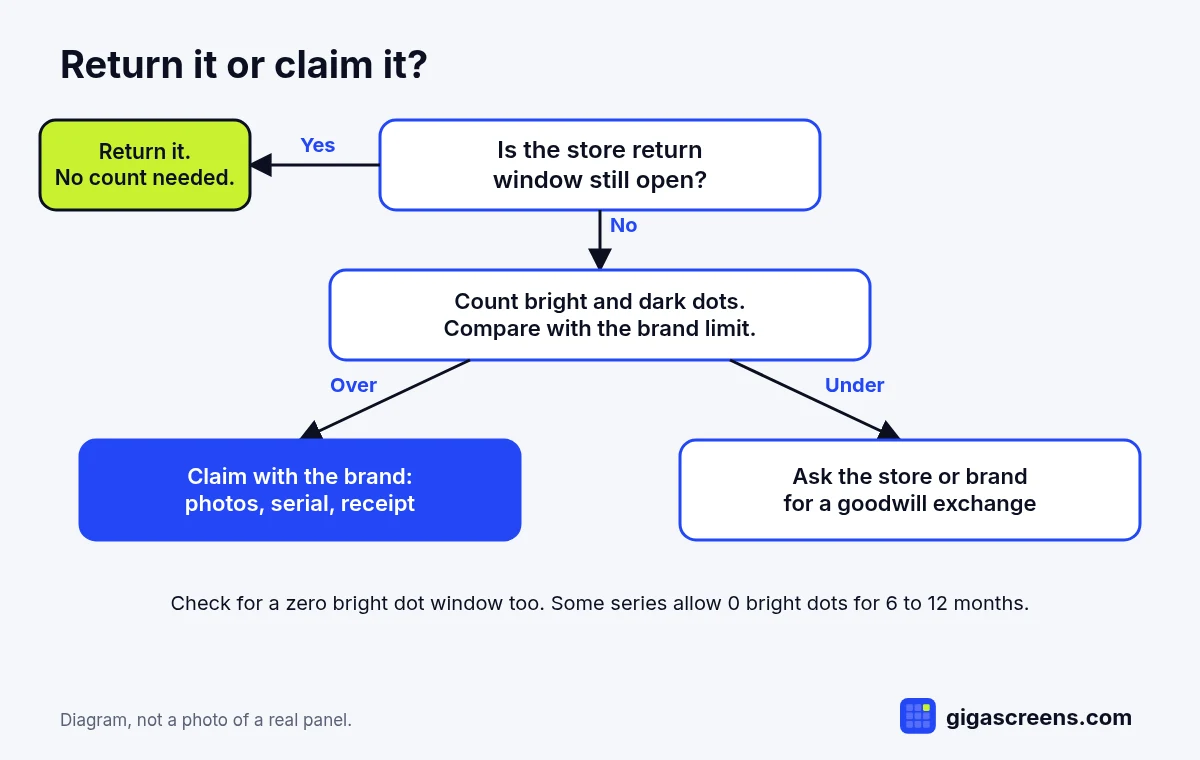
Not sure of your store’s window or your brand’s limit? The dead pixel return policy guide lists both by brand and country.
How do you count and map dead pixels for a claim?
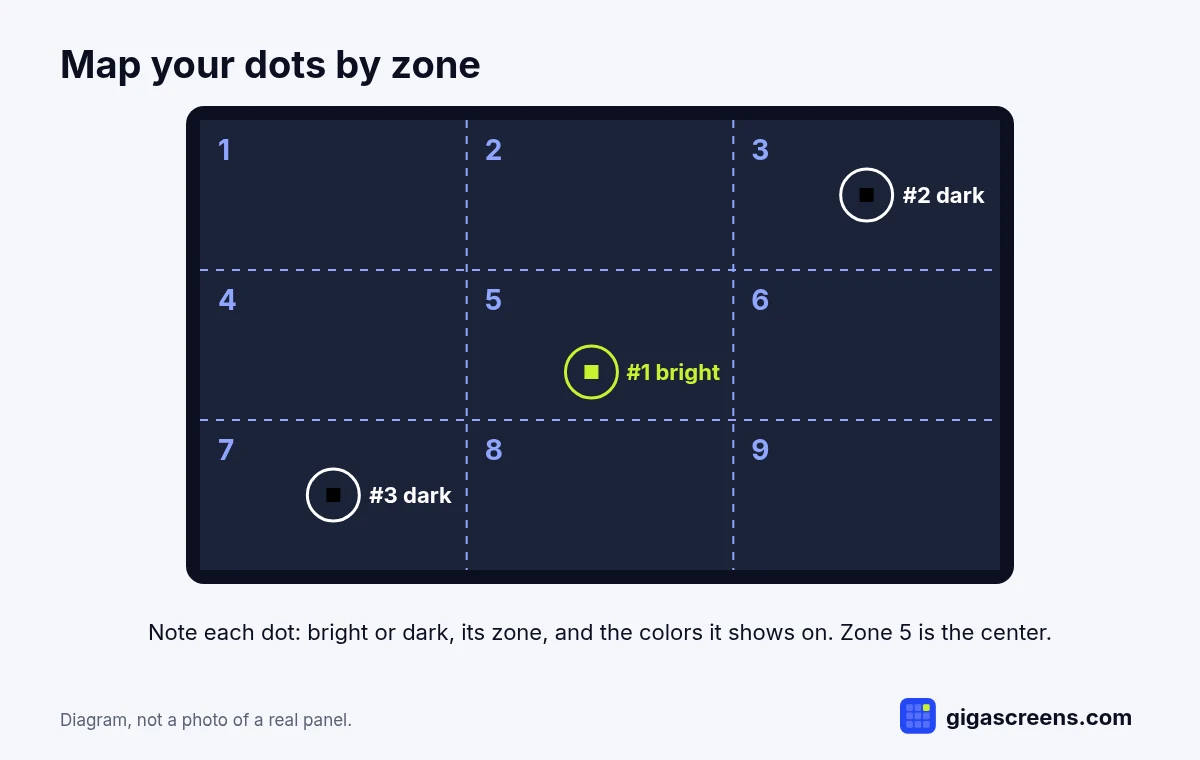
Brands count two kinds of dot, and they count them separately. A bright dot stays lit on a black screen. A dark dot stays black on white. Dell asks you to write down how many of each you see and where they sit, then compare that with its policy table before contacting support.
- Clean the screen with a dry microfiber cloth so dust doesn’t count as a dot.
- Open the dead pixel test in full screen and step through black, white, red, green and blue.
- Sit where you normally sit. Dell only counts dots “visible at normal viewing distance,” and Gigabyte’s OLED terms judge dots from at least 35 cm in a room brighter than 500 lux.
- Note each dot’s color, and which ninth of the screen it’s in. Some brands are stricter in the center. BenQ counts one dot in the center rectangle as enough.
Very small dots can be partial subpixels. Dell says these are normal, don’t count as defects, and can’t be told apart from a real subpixel without magnification. Count what you can see from your seat and let support decide.
What photos do you need for a dead pixel claim?
Four pictures cover almost every claim. BenQ’s own pixel policy asks for two of them, a photo of the whole monitor and a close-up.
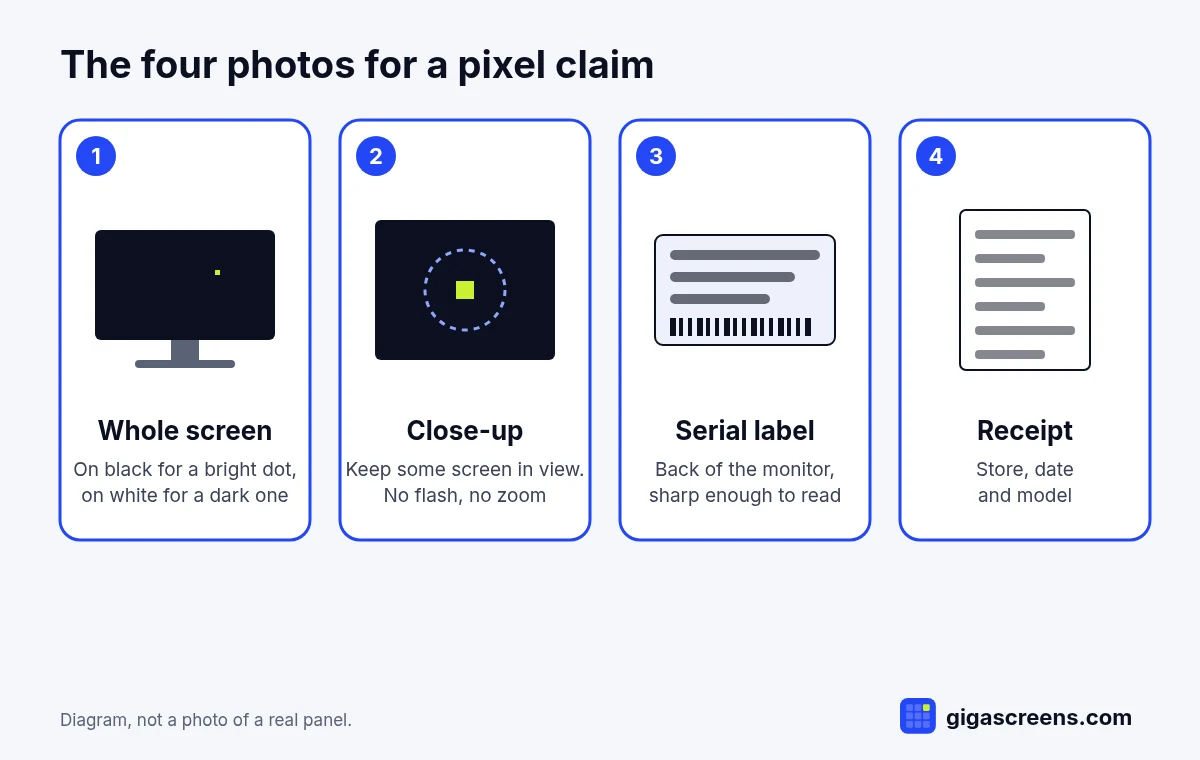
- The whole monitor, on the test color that shows the dot best. Black for a bright dot, white for a dark one.
- A close-up of the dot. Get close enough that it fills a good part of the frame, but keep some screen around it so support can see where it is.
- The serial label on the back, sharp enough to read.
- The receipt or order page, showing the date and the store.
Phone tips: turn the flash off, tap on the screen to focus, then drag exposure down until the background color isn’t blown out. Skip digital zoom, which smears small dots. Move closer instead. Name the files by number and zone, like dot1-zone5-black.jpg.
A tiny dot often won’t show in the whole-screen photo. That’s fine. Send it anyway and say in your message that the dot is visible in the close-up.
What might support ask for?
Every desk works a little differently, and none of this is a published brand rule. These are owners’ accounts of what they were asked for:
- A full-screen photo, even when the camera couldn’t resolve the dots on a 32-inch screen (Dell, r/Dell).
- An uncut video moving from the serial label to the dead pixels, plus the bill and photos of the box (MSI India, r/IndianGaming).
So keep the box until the claim is settled, and if a desk asks for a video, film it in one take from the label to the dot.
What should the claim message say?
Keep it short and put every fact support needs in the first message. Fill the brackets:
Subject: Pixel defect claim, [model], serial [serial]
Hello. My [brand] [model], serial [serial], bought from [store] on [date], has [number] bright and [number] dark pixels. They are in [zones, e.g. the center and top right] and visible from normal viewing distance on [colors]. Your published policy for this model allows [limit] (checked [date] at [link]). I’ve attached a whole-screen photo, close-ups, the serial label and my receipt. Please open a warranty claim and send the RMA steps.
The free defect record fills this in from your tapped dots, and the Screen Defect Evidence Kit has a store version and a brand version, plus a contact log.
Start the claim on the brand’s support site with your serial number. Dell, for one, asks you to check your warranty with the Service Tag and then contact technical support if you’re over the limit. If you bought a Dell UltraSharp, Professional or Alienware monitor at Best Buy in the US, Dell says you can exchange it at any Best Buy store with the original receipt.
What if they say it’s within spec?
It happens. One Samsung owner was told a replacement needed at least three dead pixels (r/Monitors, 2023).
- Ask which policy table they used, and check it matches your model. Several brands have stricter lines for premium series.
- Check for a zero bright dot window. ASUS and Gigabyte both list 12-month zero bright dot terms for some series.
- Ask the store anyway. Past the window it’s their call, but a polite request with your record attached costs nothing.
- Keep every reply. A dot count that grows is a new claim.
If it can’t be fixed
A stuck dot that’s lit in one color may clear with the stuck pixel fixer. Run it before you claim, but don’t press on the panel. A truly dead pixel won’t come back, so the claim or the return is the fix.
Frequently asked questions
Can I claim the warranty for one dead pixel?
Usually not. Most brands allow a few dots. Some premium lines allow zero bright dots, such as Dell’s Premium Panel Exchange, where one bright pixel is enough for a free panel swap during the warranty.
How do I photograph a dead pixel so it shows up?
Show the color that makes the dot stand out, turn the flash off, tap to focus, lower the exposure, and move the phone closer instead of zooming. Take a whole-screen shot too.
What is an RMA number?
It’s the Return Merchandise Authorization number the brand gives you when it accepts a claim. Quote it in every message after that, and follow the brand’s shipping steps.
Should I keep the box?
Keep it until the claim is settled. Some desks ask for photos of it, and it’s the safest way to ship the monitor back.
Related
- Dead pixel test
- Dead pixel return policy by brand and country
- How to fix a stuck pixel on a monitor
- Screen Defect Evidence Kit
- All monitor fix guides
Sources
- Dell, Dell Display Pixel Guidelines (last modified 12 Oct 2026), read 25 Nov 2026
- BenQ, LCD monitor dead pixel policy (EU PDF), read 25 Nov 2026
- Gigabyte, Monitor warranty terms (global), read 25 Nov 2026
- ASUS US, Bright/Dark Dot Warranty Table (updated Mar 2025), read 25 Nov 2026
- Owner accounts on Reddit as linked above (r/Dell, r/IndianGaming, r/Monitors)