Ghosting vs. Motion Blur
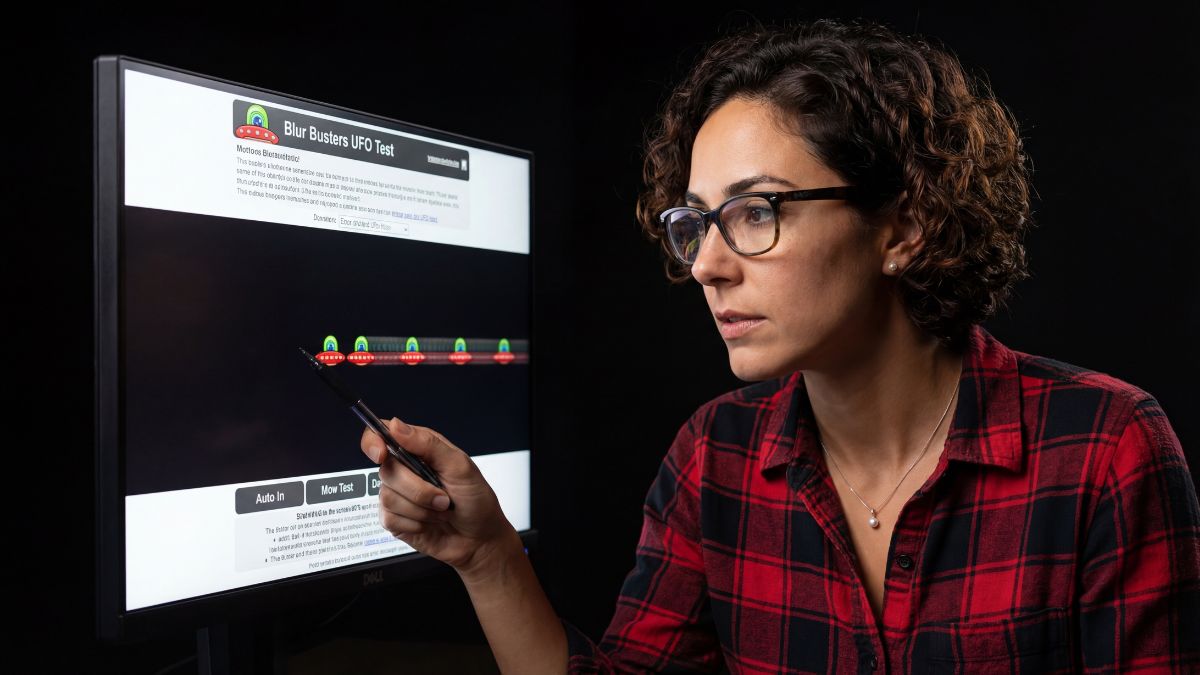
I get emails constantly from people thinking their monitor is broken because moving objects leave a faint trail behind them. This isn’t a defect; it’s physics. “Ghosting” happens when the pixels on your screen can’t change color fast enough to keep up with the moving image. It’s especially common on budget VA panels. Unlike a stuck pixel, which is a static failure, ghosting is a dynamic performance issue.
The Overdrive Fix
Manufacturers know their panels are slow, so they include a feature called “Overdrive” (sometimes labeled as Trace Free, Response Time, or AMA). This sends a higher voltage to the pixels to force them to change colors faster.
Here is my calibration process:
- Go to the Blur Busters UFO Test website.
- Open your monitor’s OSD menu.
- Find the Overdrive setting.
- Watch the UFOs while increasing the setting one step at a time.
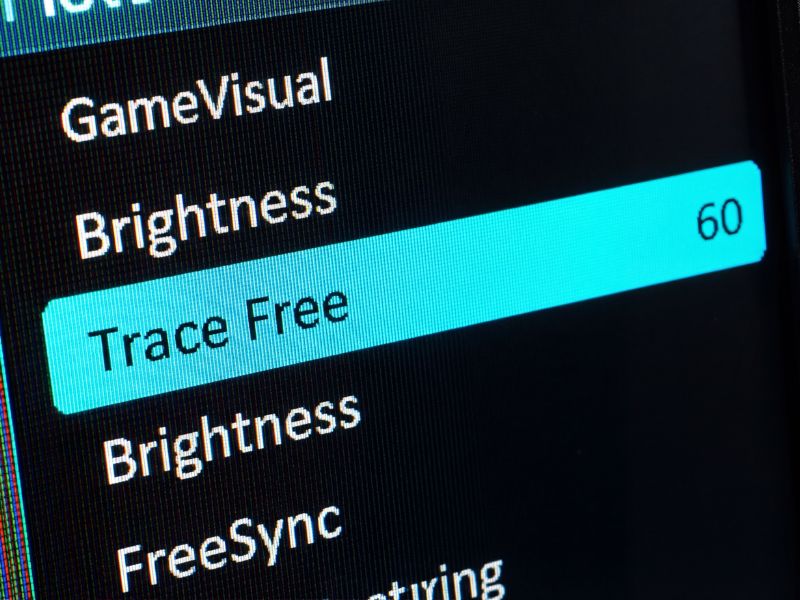
The factory default is rarely the fastest option—dig into the OSD to unlock the speed you paid for.
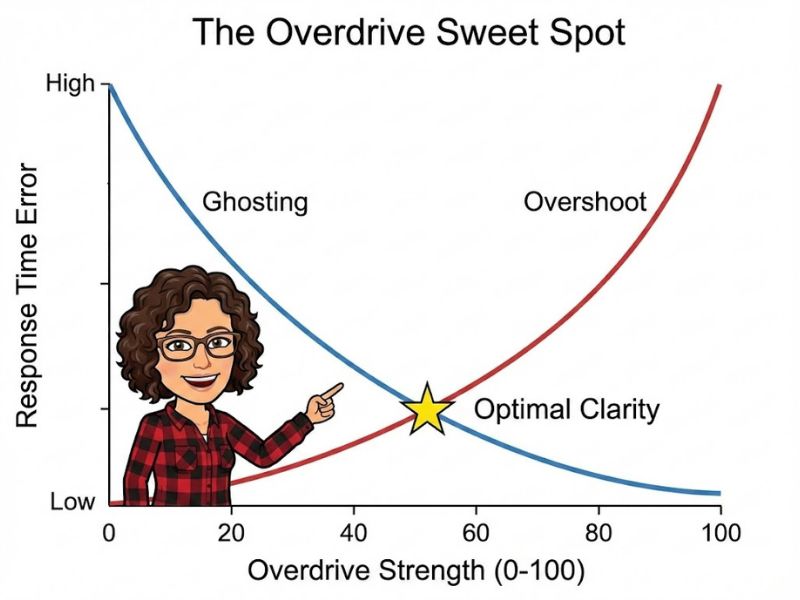
You want to find the ‘Goldilocks’ zone: too little overdrive gives you trails, too much gives you coronas.
Cable & Refresh Rate Check
Sometimes the bottleneck is the pipe, not the panel. If you are using an old HDMI cable on a 144Hz monitor, you might be locked to 60Hz, which makes ghosting look significantly worse. Always use the DisplayPort cable included in the box, or a VESA-certified replacement. I also recommend checking your secondary monitor settings to ensure Windows isn’t defaulting your main gaming display to a lower refresh rate.

Once you eliminate the trails, your aim improves instantly. It’s not magic; it’s just pixel response calibration.
Common Questions
Why does my VA panel ghost so much?
VA (Vertical Alignment) panels often struggle with slow black-to-grey pixel transitions. This physical limitation causes ‘smearing’ in dark scenes, which can be mitigated but not fully eliminated via Overdrive.
What is inverse ghosting?
Inverse ghosting, or ‘overshoot,’ happens when you set your Overdrive too high. The pixels transition so fast they overshoot the target color, leaving a bright halo or corona around moving objects.

