
Why I Overclock (And You Should Too)
I treat factory specifications as suggestions, not rules. Manufacturers typically “bin” panels conservatively to ensure 100% stability across millions of units, leaving a significant performance margin on the table. If you have a budget gaming monitor, it is almost certainly capable of 10-20% more speed than the box claims. Why leave that free performance locked away?
For those running modest rigs, every hertz counts. Higher refresh rates reduce system latency. It’s the ultimate “fix it before you buy it” strategy. If your 60Hz screen can hit 74Hz, you’ve just gained a smoother experience for $0.

“If the frame timing isn’t consistent, that extra speed is just digital bloat.”
The Only Tools You Need
Don’t fall for “optimization suites” that come bundled with bloatware. I only use two things:
- CRU (Custom Resolution Utility): The gold standard for direct EDID manipulation.
- UFO Test (Blur Busters): To verify we aren’t skipping frames.
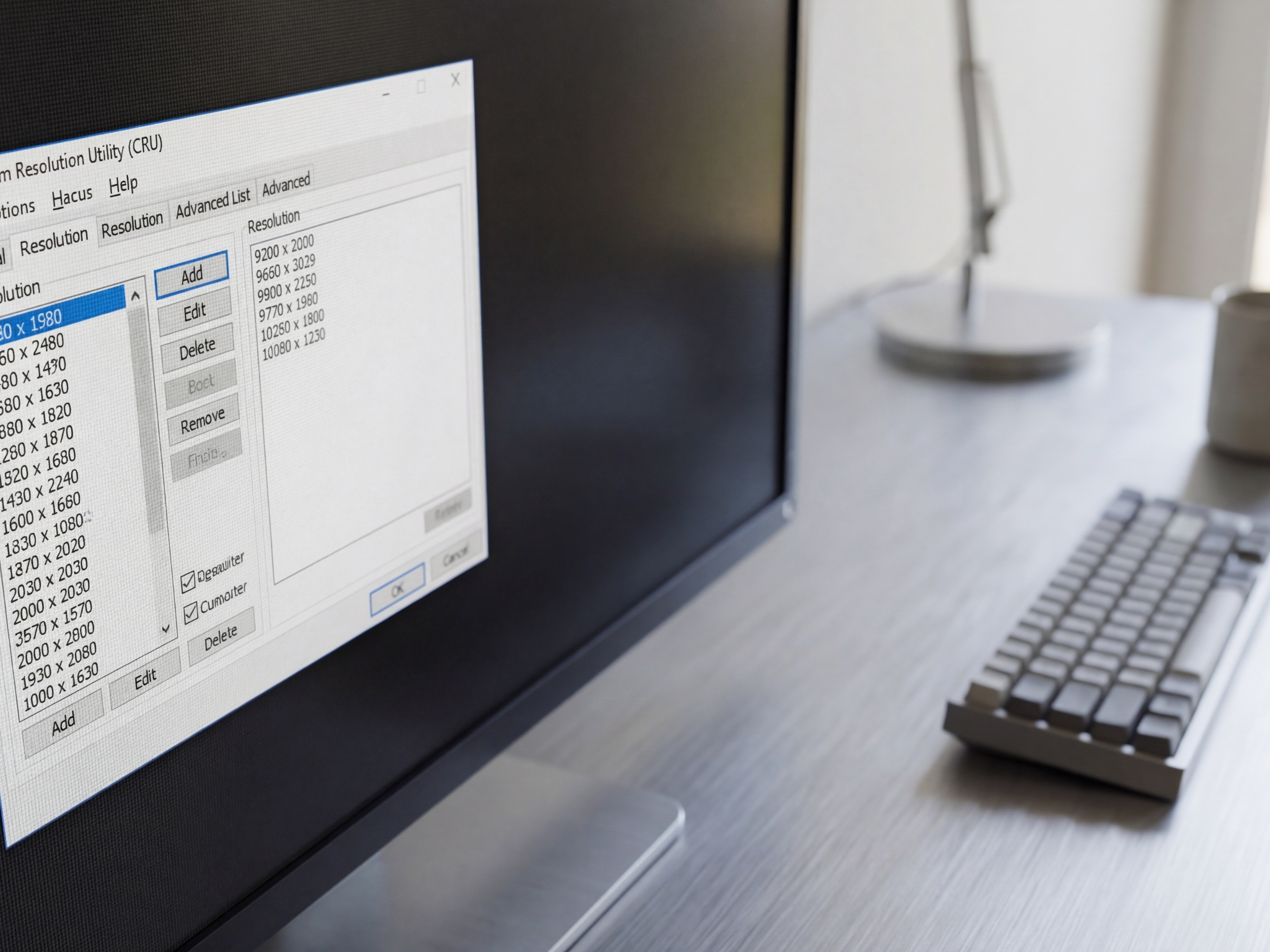
“This software is the scalpel you need to bypass manufacturer-imposed limits.”
The Pragmatic Step-by-Step
I tested this on three different “office” monitors last week. Here is the workflow that respects your hardware’s lifespan:
- Open CRU and select your active display.
- Add a “Detailed Resolution” and bump the Refresh Rate by 5Hz.
- Restart your graphics driver (use the restart.exe included with CRU).
- Change your display settings in Windows. If the screen goes black, wait 15 seconds; it will revert.
- Verify with a frame-skipping test. If it’s smooth, keep going in 1Hz increments.
Check out our guide on Best PC Optimization Software to understand how you can remove bloatware.

“A stable 75Hz on a 60Hz panel feels like a free hardware upgrade, and I love free.”
Efficiency FAQs
Is monitor overclocking safe?
Yes. Unlike overvolting a CPU, you are simply pushing the timing controller. If it can’t handle it, the screen typically loses signal. You aren’t going to “burn out” the liquid crystals by adding 10Hz.
Does it void my warranty?
Technically, software-level changes can be a grey area, but since you aren’t opening the chassis, it’s virtually impossible for a manufacturer to prove you ran it at 72Hz instead of 60Hz.

