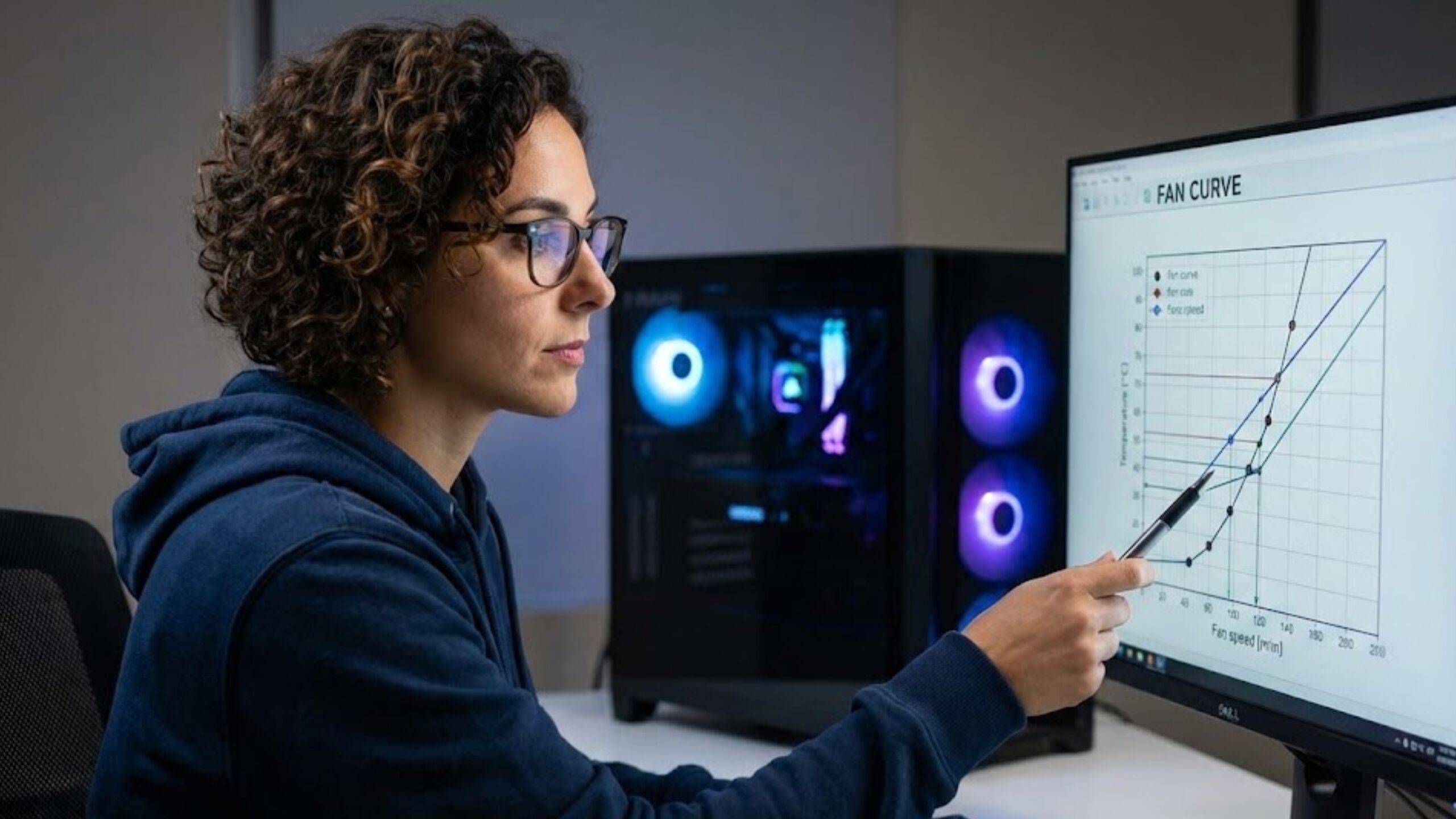
I have built and analyzed systems for 15 years, and the most common efficiency crime I see isn’t cheap hardware—it’s lazy tuning. Most PCs sound like a vacuum cleaner not because the fans are bad, but because the factory BIOS settings are designed for worst-case scenarios.
As a Pragmatic Optimizer, I refuse to let you buy expensive “silent” fans before you fix the software controlling the ones you already own. Setting a custom curve is the ultimate free upgrade: it costs $0, takes 15 minutes, and can make your $500 budget rig sound like a $2000 stealth build.
Why Stock Fan Curves Are Terrible
Manufacturers are terrified of warranties. To protect themselves, they set default fan curves to be overly aggressive. If your CPU spikes to 60°C for one second because you opened a browser tab, a stock curve will panic and ramp the fans to 80%. This creates a constant, annoying “revving” sound.
Our goal is efficiency: we want the fans to spin only as fast as strictly necessary to prevent throttling, and not a single RPM faster.
BIOS vs. Software: Which Tool to Use?
You have two main options, and I have a clear recommendation:
- BIOS (UEFI): The most reliable method. The settings live on the motherboard, meaning no background software is required. Ideal for the “set it and forget it” crowd.
- Software (Fan Control): For Windows users, I highly recommend the open-source tool simply called Fan Control. Unlike the bloatware that comes with your motherboard (looking at you, Armoury Crate), this tool is lightweight and incredibly powerful.
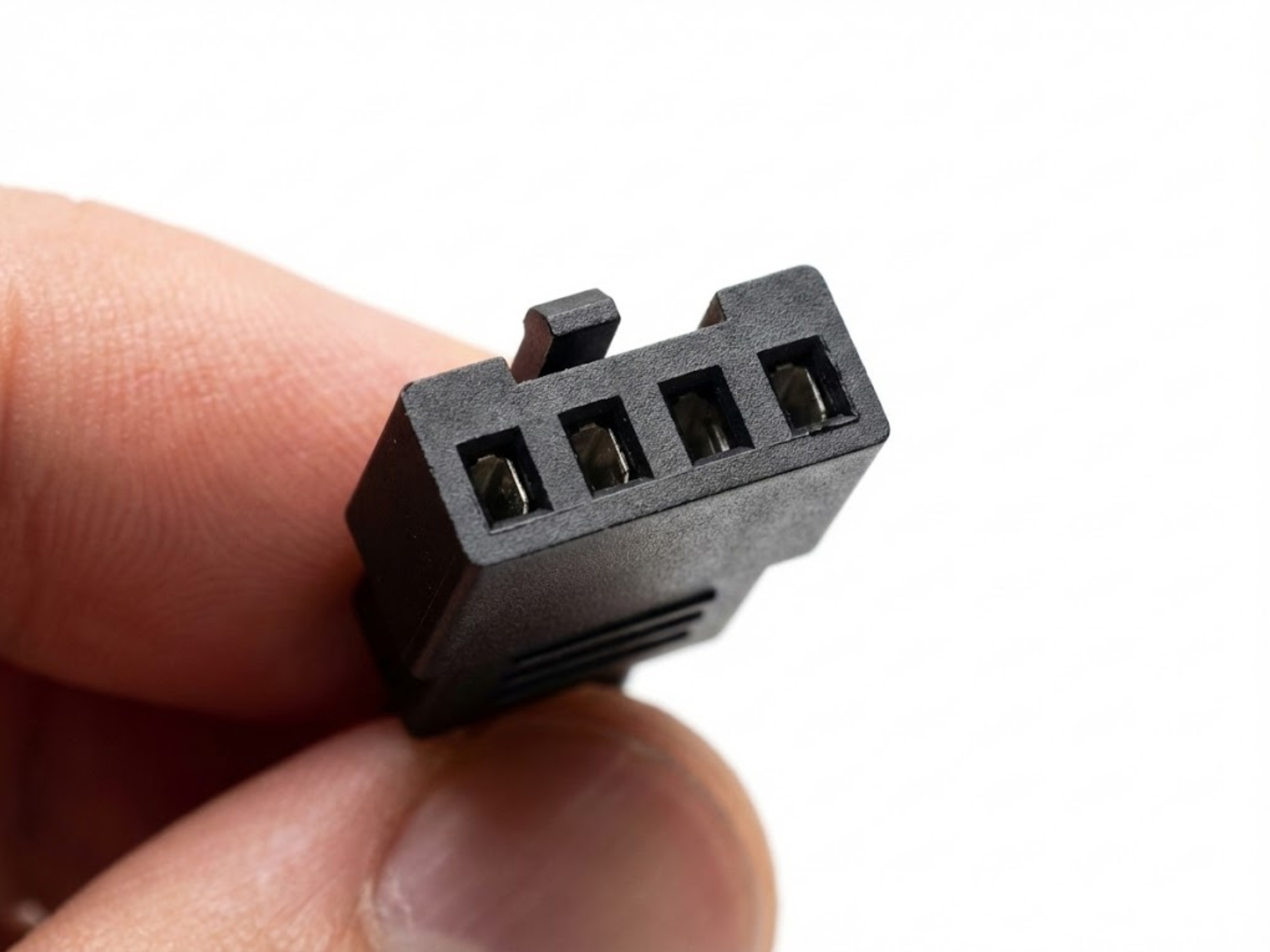
If you want precise control, you need this 4-pin PWM connector. The fourth pin carries the control signal that lets us set exact speeds instead of just varying the voltage.
The “Pragmatic Staircase” Strategy
Whether in BIOS or software, here is the curve profile I recommend for 90% of budget builds:
- The Idle Floor (0°C – 50°C): Set fans to a flat 20-30%. This should be inaudible. Modern chips run hot; don’t try to cool them to room temperature at idle. It’s a waste of energy.
- The Working Ramp (50°C – 75°C): Create a linear slope from 30% up to 60%. This covers most gaming loads. You want audible airflow, but not a wind tunnel.
- The Panic Button (85°C+): If the chip hits 85°C, ramp immediately to 100%. If you are hitting this temp, silence doesn’t matter—saving the hardware does.

This is why your PC sounds like a revving engine. The stock curve on the left reacts to every millisecond spike. The custom curve on the right uses ‘hysteresis’—a smart delay—to smooth out the noise.
The Secret Weapon: Hysteresis
This is the technical term that separates the pros from the amateurs. Hysteresis (or “Step Up/Step Down” time) is the delay between a temperature spike and the fan responding.
Without it, your fans rev up instantly when temps spike for a millisecond. I recommend setting a 3-5 second delay (hysteresis) on fan spin-up. This tells the fans: “Wait 3 seconds to see if the temperature stays high before you start screaming.” This single setting eliminates almost all random fan noise.
Further Optimization
A silent PC is an efficient PC. Once your fans are tuned, you should look at other free ways to optimize your system. If your fans are still running loud because the system is fighting background tasks, you need to clean up your OS. Check out my guide on The Best Free PC Optimization Software.
Additionally, if your GPU specifically is the source of the noise, a fan curve might only be half the battle. You might need to refresh the thermal interface. I cover that process in detail here:Top PC Cases for Optimal Thermal Performance

A 15-minute software tweak turned this loud budget rig into a stealth machine. No expensive new fans required.
Frequently Asked Questions (FAQ)
What is the best software for custom fan curves?
While most motherboard BIOSes have built-in tools, the best free software solution is arguably ‘Fan Control’ (GitHub). It is lightweight, bloatware-free, and offers advanced features like mixing curves and hysteresis that proprietary software often lacks.
What is a safe temperature for my CPU and GPU?
For modern hardware, anything under 80°C under load is perfectly safe. You do not need to run your fans at 100% to keep a CPU at 50°C; that is wasted energy and noise. Aim for a curve that keeps temps below 85°C while maintaining acceptable noise levels.
Why do my fans ramp up and down constantly?
This is caused by a lack of ‘hysteresis’ or ‘step-up/step-down’ delay. If your CPU jumps from 50°C to 51°C and back, an aggressive curve will rev the fans instantly. Adding a 2-5 second delay smoothing prevents this annoying behavior.

