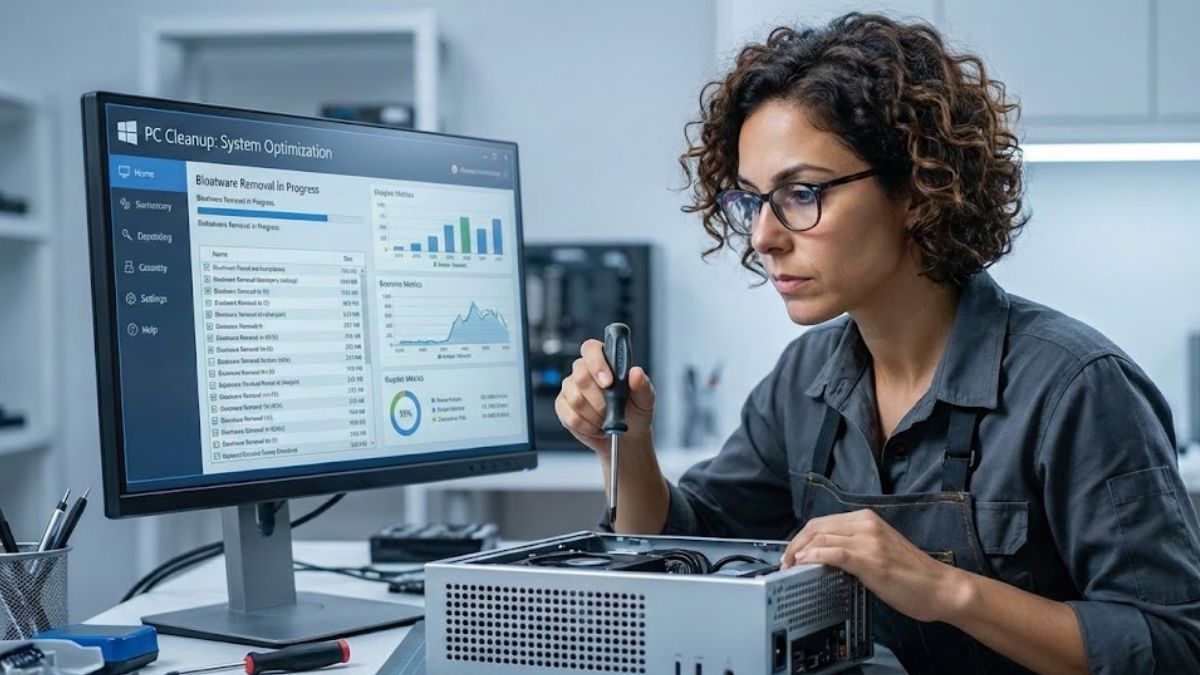
Stop Paying for Hardware: My Frugal Approach
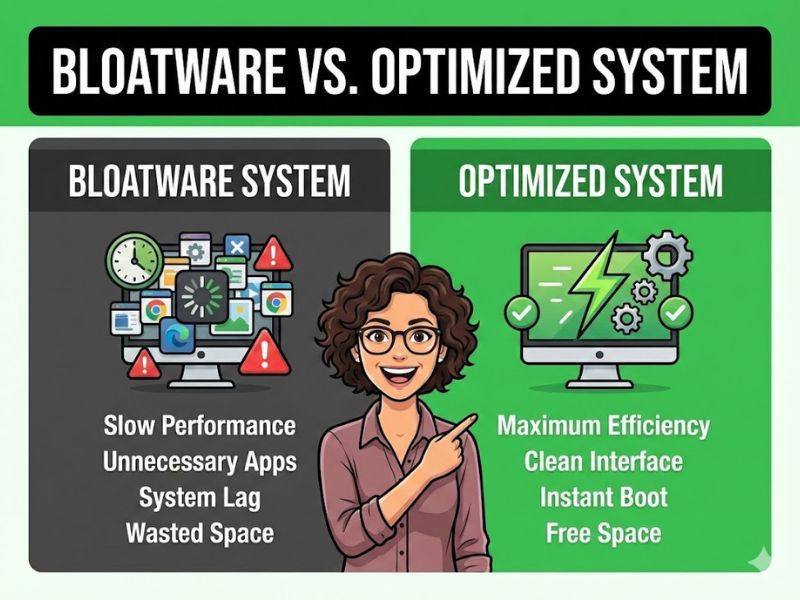
This visual comparison highlights the drastic performance difference between a bloatware-cluttered system and one optimized with free tools.
I’ve been working with PC hardware for over 15 years, and if there’s one thing I absolutely despise, it’s inefficiency—especially the kind that forces a user to buy new parts prematurely. Too often, people upgrade their CPUs or RAM because their system “feels slow,” when in reality, they’re just drowning under the weight of unnecessary bloatware.
My philosophy is simple: Fix it before you buy it. The single most cost-effective performance upgrade you can perform is a thorough system clean. You don’t need expensive suites or yearly subscriptions; the best tools for cleaning up unnecessary files and crippling startup programs are completely free. I tested the top contenders to bring you this pragmatic guide to maxing out your machine’s potential.
The Top 3 Free, Vetted Bloatware Removal Tools
When looking for the best free PC optimization software to remove bloatware, I prioritize safety, effectiveness, and zero-cost accessibility. Here are the three tools I use in my own workstation maintenance rotation:
1. CCleaner Free (The Baseline Cleaner)
CCleaner remains the go-to tool for quick, reliable cleaning. While the paid version exists, the free version is more than enough for removing temporary files, clearing browser cache, and managing basic startup items. It’s the easiest tool for instant relief from disk clutter. Just ensure you uncheck any optional software installations during the setup process; that’s just unnecessary bloat right there!
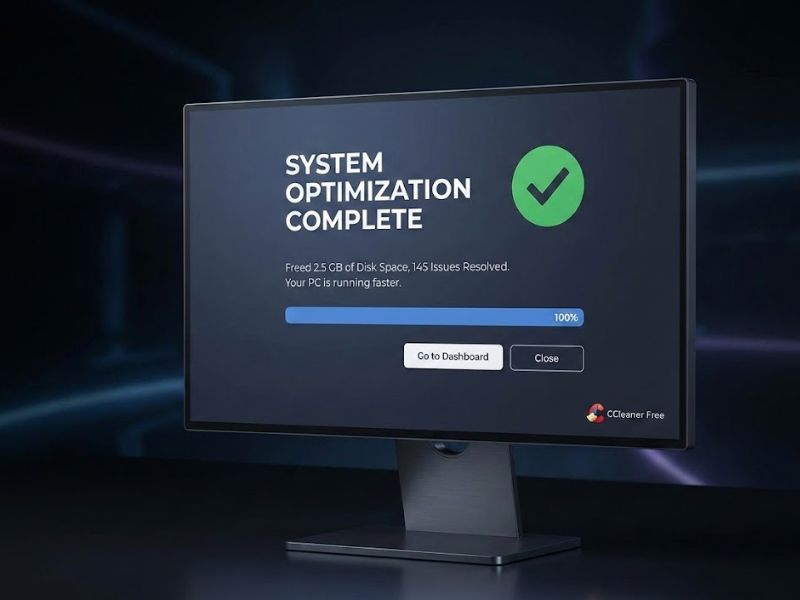
A look at the clean, intuitive user interface of a top-tier free optimization tool displaying a completed system cleanup.
2. Windows Built-in Tools (The Essential Foundation)
Never overlook the power of what you already own. The Windows operating system itself provides incredibly powerful, bloat-free utilities:
- Task Manager (Startup Tab): This is your single most important tool. Disable any program you don’t need running the moment Windows loads. Instant startup speed gains.
- Disk Cleanup: Search for this tool and run it as an administrator. It is highly effective at clearing out system cache files, old Windows Update junk, and temporary files that can consume gigabytes of storage.
- Add or Remove Programs: Simply uninstalling manufacturer-installed trialware and gaming launchers you no longer use is the purest form of bloatware removal.
3. Sysinternals Suite (The Expert’s Scalpel)
For the user who wants maximum, granular control—the frugal optimizer who refuses to leave performance on the table—the Sysinternals tools are essential. Specifically, Autoruns shows you everything that starts with Windows, including drivers and scheduled tasks, and Process Explorer gives you a deep view into resource consumption that Task Manager obscures. These tools require knowledge, but they deliver pure, unadulterated efficiency, which is what I recommend.
Advanced, Frugal Optimization: Fix It Before You Buy It
Optimization is not a one-time process; it’s a mindset. If you’ve tackled the bloatware using the free tools above, you’ve already won the main battle for efficiency. To take it further, you must maintain a practical approach to your entire system. For instance, knowing how to properly undervolt or fine-tuning your graphics card settings is key to extracting maximum performance from existing components. I recommend mastering tools like GPU Tweak III Guide to keep your older hardware running lean and fast.
If, after all your optimization efforts, you determine you must upgrade, I urge you to look for maximum value. Don’t be fooled by top-tier marketing; there are phenomenal deals to be found. For those building the ultimate budget machine, read my guide on the Best Budget Graphics Card Under $150—it’s proof that high performance doesn’t require a high price tag.
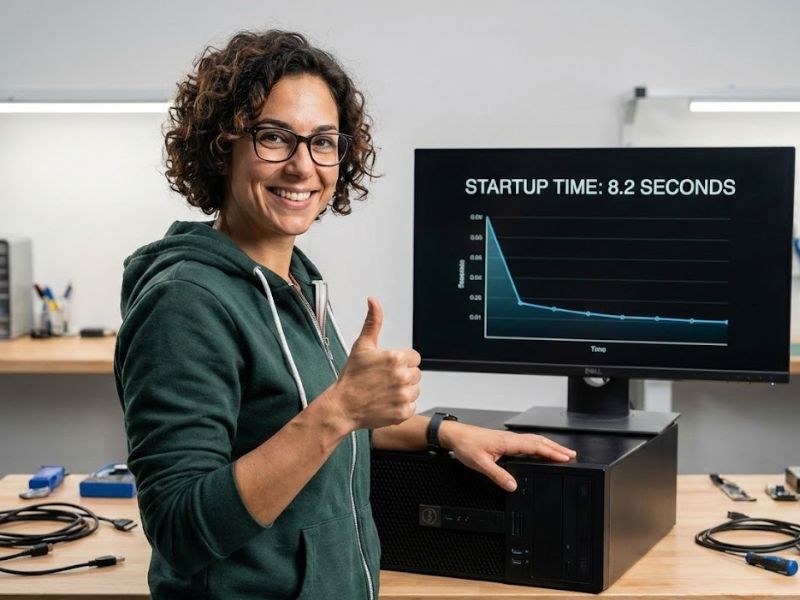
The final verdict: achieving maximum efficiency and reduced startup times is possible using only free software.
Frequently Asked Questions
Is free PC optimization software safe to use?
The reputable tools I recommend are safe. The danger lies in non-vetted, aggressive “registry cleaner” software. Stick to well-known programs that focus on removing temporary files, cleaning startup entries, and managing browser extensions, not deep system files.
What is bloatware and how does it slow down my PC?
Bloatware refers to unnecessary or unwanted software pre-installed by manufacturers or bundled with other programs. It slows your PC by consuming system resources (RAM, CPU cycles) in the background, especially upon startup, reducing the performance available for your core tasks like gaming or productivity.
Will optimization software help my budget graphics card perform better?
Absolutely. While optimization doesn’t directly boost the GPU’s clock speed, it frees up CPU and RAM resources that your graphics card relies on. Less background noise means fewer bottlenecks, giving your GPU the maximum head-room to perform its rendering tasks efficiently. It’s the cheapest performance upgrade available.

