
There is no sound more frustrating to a PC builder than the high-pitched “screech” of a brand-new graphics card under load. You spend hours optimizing fans for silence, only to be betrayed by the electronics themselves.
I’ve tested hundreds of cards over the last 15 years, and I can tell you: Coil Whine is not a death sentence. It’s simply physics—electricity vibrating through a copper coil. While manufacturers say “it’s normal,” I say it’s inefficient and annoying. Here is my pragmatic protocol for silencing the screech without spending a dime.
The Physics: Why Does It Scream?
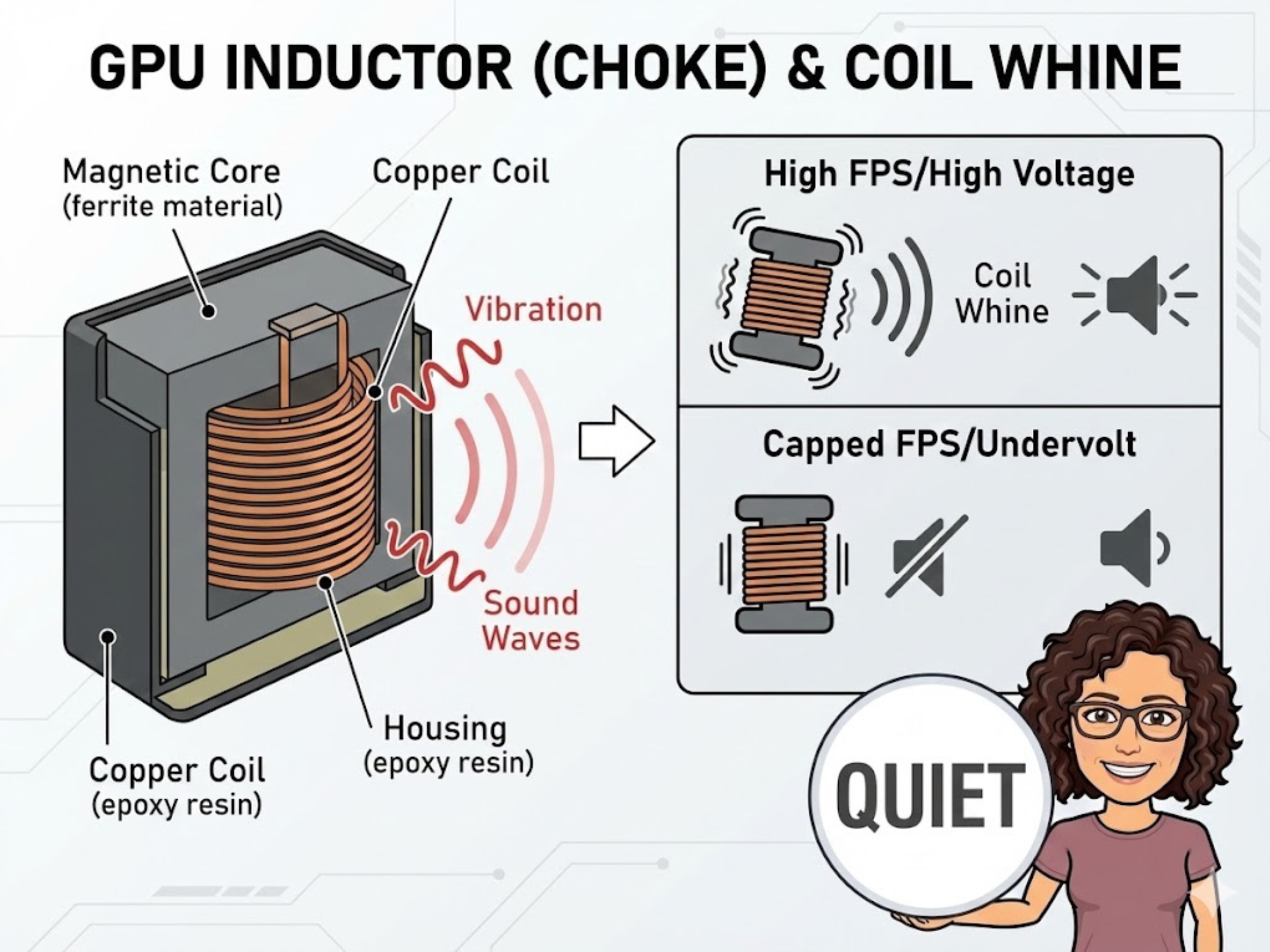
How high voltage and runaway framerates cause physical vibrations inside your GPU’s copper chokes.
Your graphics card has components called inductors (or chokes). These look like little square blocks on the circuit board. As power flows through them, the electromagnetic force causes the copper coils inside to vibrate.
When that vibration hits a specific resonant frequency, it becomes audible to the human ear. That is coil whine. It usually happens in two scenarios:
- High Power Draw: The card is pulling massive wattage.
- Extremely High Framerates: You are hitting 900+ FPS in a game menu.
Method 1: The “Burn-In” (The First Step)
If your card is brand new, don’t panic yet. The varnish inside the inductors can sometimes “settle” with heat and time. I recommend running a heavy benchmark (like Heaven or Superposition) on a loop for 12-24 hours. I have had several cards quiet down significantly after an initial break-in period. It costs nothing but time.
Method 2: Frame Capping (The Instant Fix)
Have you noticed the screaming starts when you load a game menu? That’s because your GPU is rendering the menu at 2,000 FPS, working unnecessarily hard.
The Fix: Go into your NVIDIA Control Panel or AMD Adrenalin software and set a global Max Frame Rate. Lock it to your monitor’s refresh rate (e.g., 144Hz or 165Hz). This stops the GPU from wasting energy on frames you can’t see, instantly killing the high-pitch whine associated with runaway framerates.
Method 3: Undervolting (The Expert Solution)
This is my favorite method because it increases efficiency while reducing noise. By lowering the voltage your card uses to hit its clock speeds, you reduce the electromagnetic force vibrating those coils.
I recently silenced a particularly loud card simply by dropping the voltage from 1050mV to 950mV. It ran cooler, faster, and dead silent. For a detailed walkthrough on how to do this safely, read my guide on Mastering GPU Tuning with ASUS GPU Tweak III.
Hardware Swaps: PSU & Padding
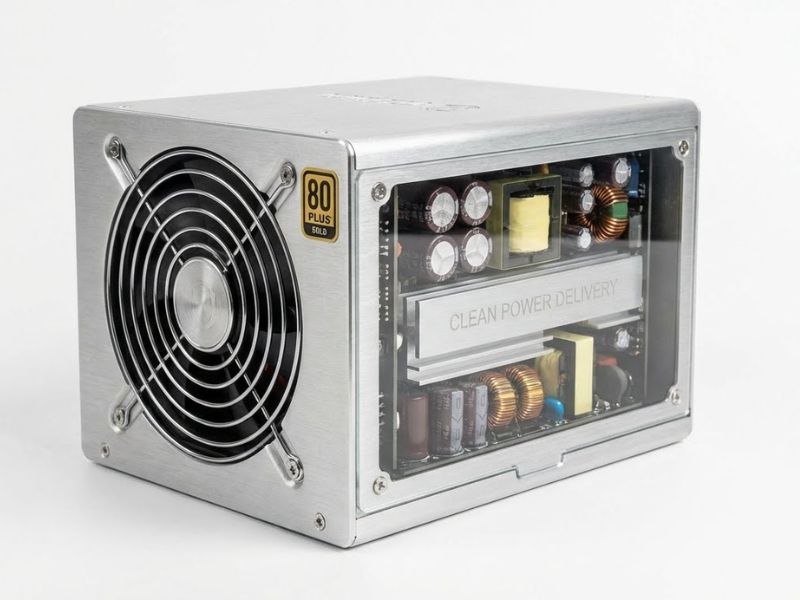
Dirty power equals noisy components. Upgrading to a high-quality, Gold-rated PSU with low ripple can sometimes silence a whining card instantly.
If the software tweaks don’t work, the issue might be “dirty” power. A Power Supply Unit (PSU) with high ripple can cause a GPU to whine. If you are using a budget graphics card with a cheap, unrated PSU, swapping to a high-quality Gold-rated unit can sometimes filter out the electrical noise causing the vibration.
A silent, high-performance rig where the only sound you hear is the game audio, not the hardware.
Frequently Asked Questions (FAQ)
Does coil whine mean my GPU is dying?
No. Coil whine is a physical phenomenon caused by electricity vibrating through copper inductors. It is annoying, but it is not a sign of failure and does not harm performance or longevity.
Will changing my Power Supply (PSU) fix coil whine?
It might. Sometimes coil whine is caused by “dirty” power delivery or ripple from a lower-quality PSU interacting with the GPU’s VRMs. Switching to a high-quality unit can dampen or eliminate the sound.
Does warranty cover coil whine?
Rarely. Most manufacturers consider coil whine a normal operating characteristic. Unless the noise is exceptionally loud (audible across a room), RMA requests for coil whine are often rejected.

